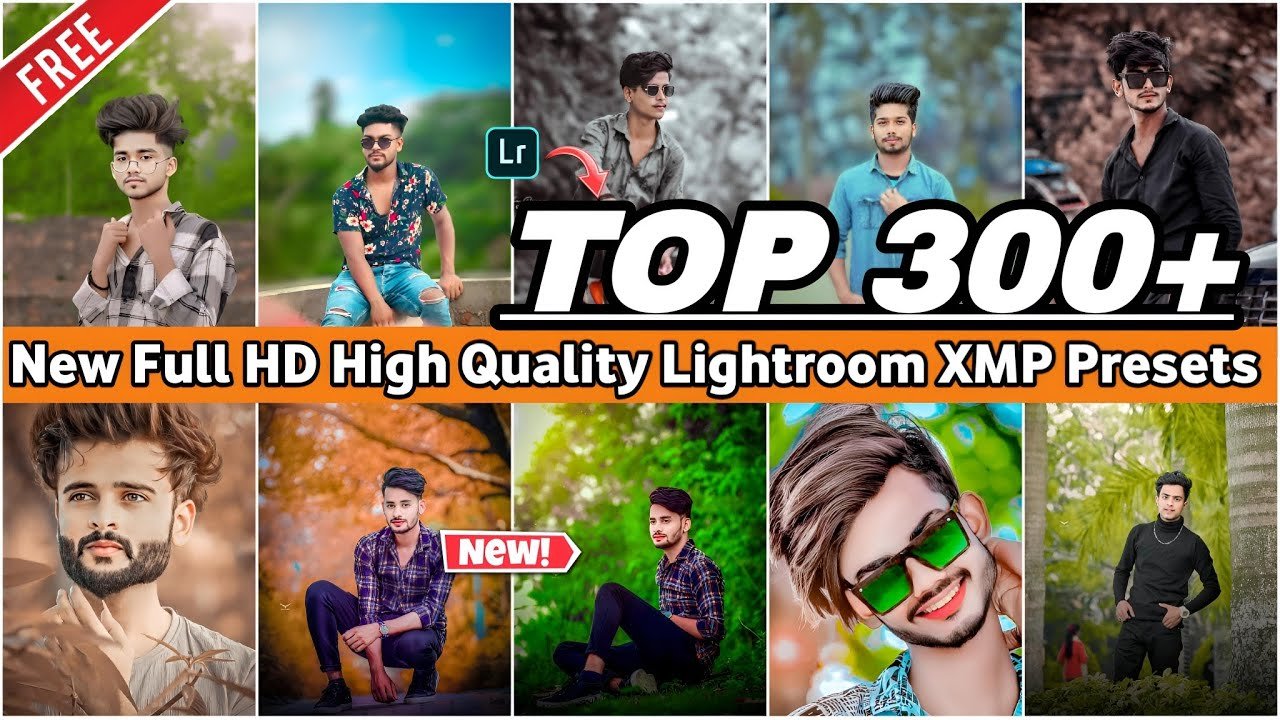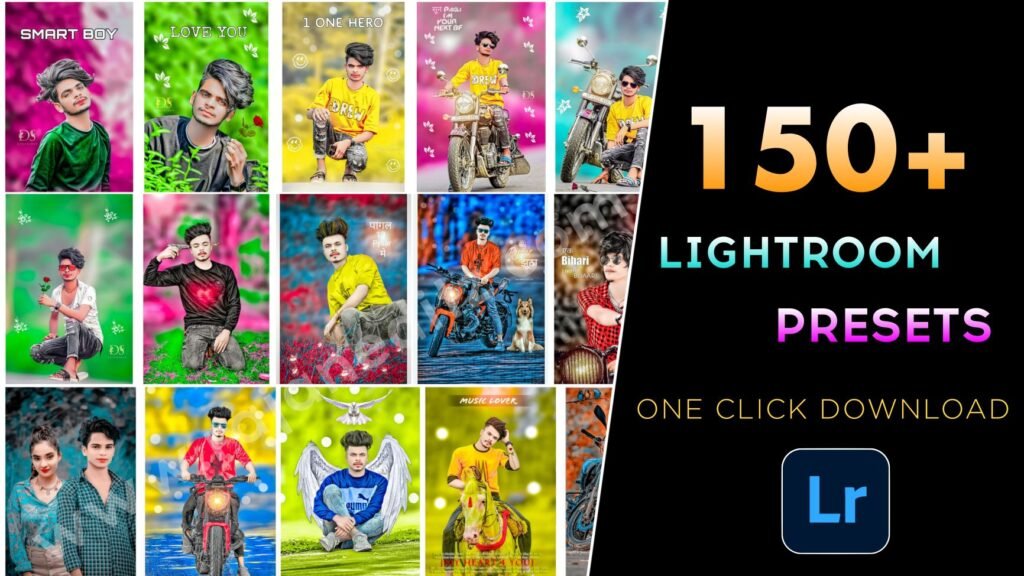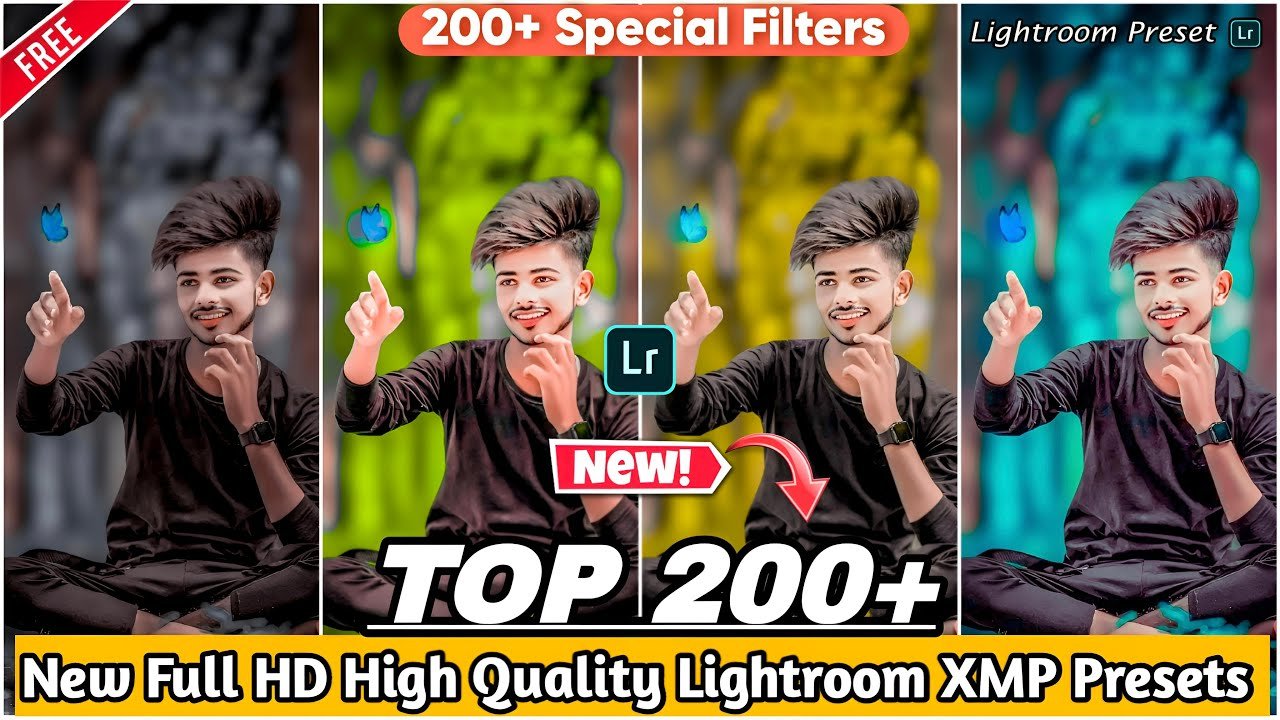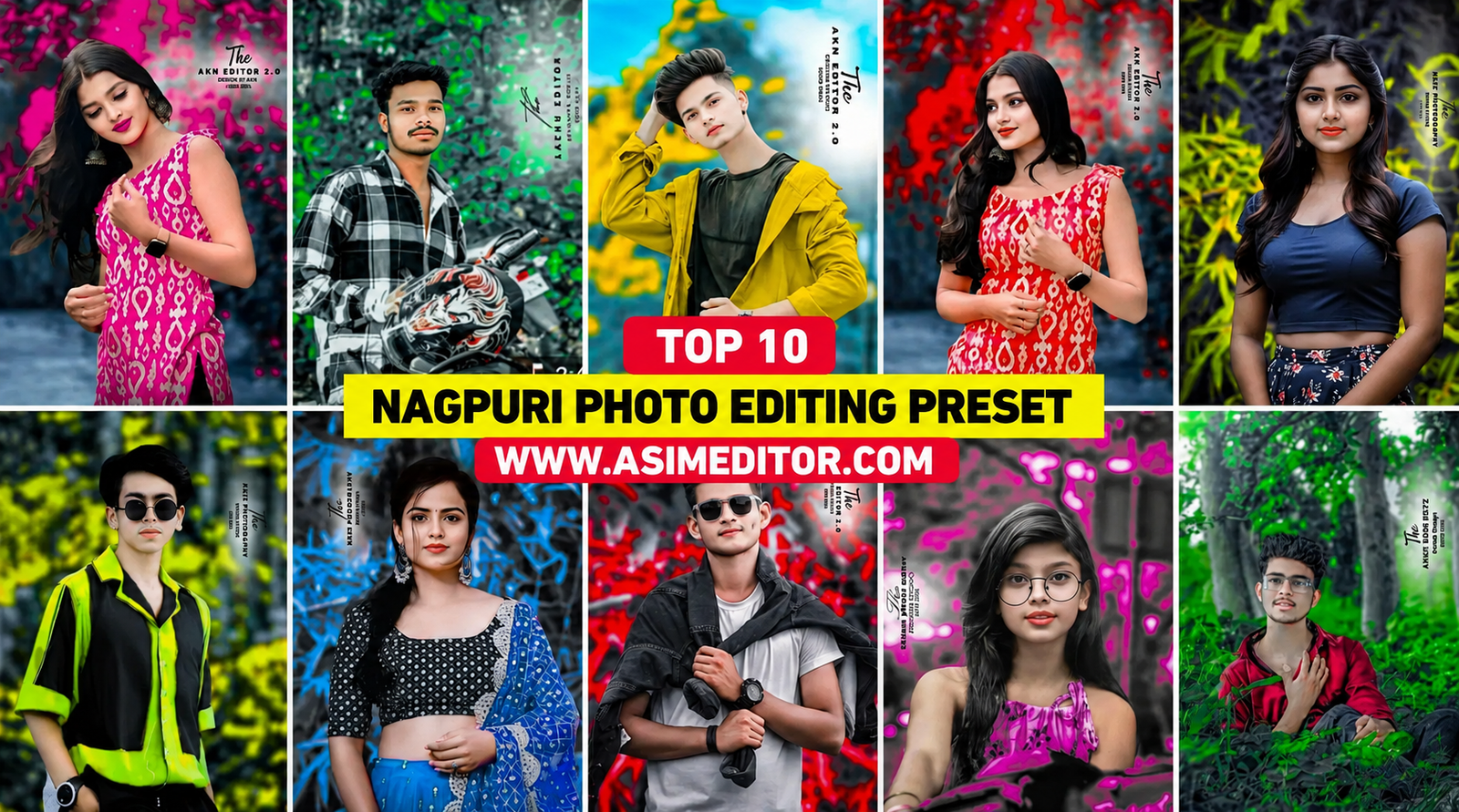
Hello friends, my name is Asim, and welcome back to your own website, Asim Editor.
Are you looking for the best Nagpuri photo editing presets for Lightroom? If you want stylish Nagpuri presets with different color tones such as green, yellow, red, pink, cinematic, and colorful effects, you are in the right place.
In this article, I am sharing the Top 10 Nagpuri Photo Editing Presets for Lightroom that you can use to give your photos a beautiful and eye-catching look. With these presets, you can apply a ready-made color style to your photo with just a few taps in the Lightroom app.
You can choose any preset according to your photo and editing style. Whether you want a green tone, yellow effect, red color grading, pink look, or a cinematic Nagpuri style, these Lightroom presets can help you achieve the look you want quickly and easily.
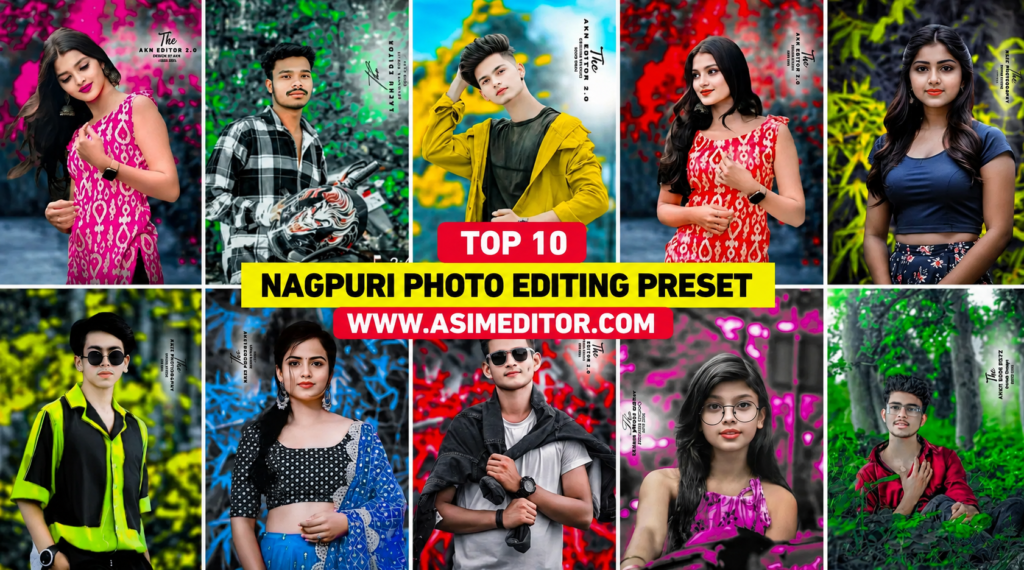
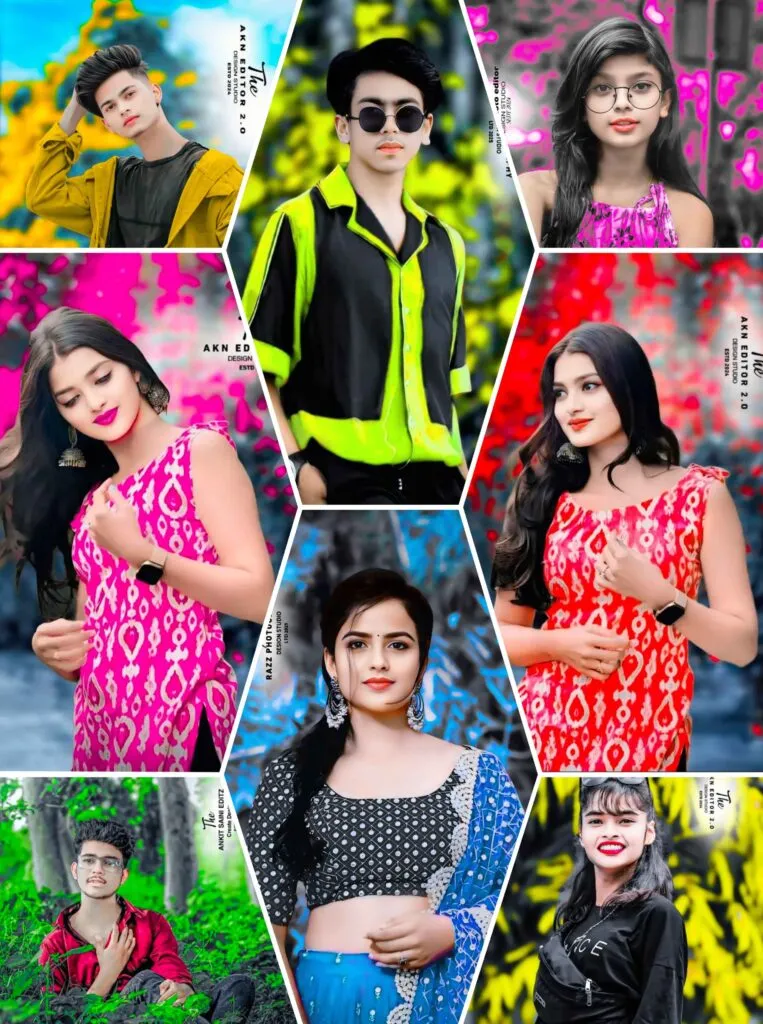
The photo samples shown in the thumbnail were edited using these types of presets. Instead of adjusting every setting manually, you can use a preset to get a similar color effect much faster. You can also adjust exposure, contrast, highlights, shadows, and other settings after applying the preset to make the final result look even better.
If you are interested in Nagpuri photo editing in Lightroom and want to try these presets, keep reading this article. Below, you can explore the top 10 Nagpuri Lightroom presets and learn how to use them for your photos.
Top 10 Nagpuri Photo Editing Lightroom Presets
If you are looking for the best Nagpuri photo editing Lightroom presets, you are in the right place. In this collection, you will find 10 Nagpuri Lightroom presets with different color styles that can help you create attractive and stylish Nagpuri photos.
I noticed that many creators on Instagram are using different color tones for Nagpuri photo editing. Some prefer bright and colorful edits, while others like cinematic, warm, or dark tones. That is why I decided to put together these Top 10 Nagpuri Photo Editing Presets, so you can choose the style you like and edit your photos more easily.
These Nagpuri Lightroom presets are available in DNG format. You can import the DNG preset into the Lightroom mobile app, copy its editing settings, and apply them to your own photo. With the right preset, you can achieve a beautiful color effect without manually adjusting every Lightroom setting.
For advanced Nagpuri photo editing, Lightroom’s Masking tool can also be useful. It allows you to edit different parts of a photo separately and create more controlled color effects. In many Nagpuri editing styles, two different color tones are combined to give the image a more eye-catching look.
If you want to try different Nagpuri photo editing color styles and make your photos look more attractive, check out all 10 presets and choose the one that best matches your photo. Make sure to read the full article to learn how to use these presets correctly in Lightroom./
What Are Lightroom Presets?
Lightroom presets are pre-made photo editing settings that let you edit your photos quickly without adjusting every option manually. A preset can include settings such as brightness, exposure, contrast, highlights, shadows, saturation, colors, sharpness, and effects.
In simple words, a Lightroom preset works like a custom photo filter. Just like you use different filters on Instagram or Snapchat to change the look of a photo, you can apply a Lightroom preset to give your image a specific style or color tone with just one click.
The final result depends on the type of preset you choose. For example, some presets can create a warm yellow tone, while others may give your photos a cinematic, dark, colorful, or natural look.
If you are looking for a Nagpuri photo editing style, the Top 10 Nagpuri Lightroom Presets mentioned in this article can help you create a beautiful sweet yellow color effect in your photos. You can apply a preset and then make small adjustments to brightness, exposure, or other settings if needed to get the perfect result.
How to Use Nagpuri Lightroom Presets
Using the Top 10 Nagpuri Lightroom Presets is simple, even if you are new to photo editing. These presets come in DNG format and can be used with the Lightroom Mobile app.
Steps to Use DNG Presets
- Download and install Adobe Lightroom on your phone.
- Open Lightroom and import the downloaded DNG preset.
- Open the DNG file and tap the three dots.
- Select Copy Settings.
- Open the photo you want to edit.
- Tap the three dots again and choose Paste Settings.
- Adjust brightness, contrast, colors, or other settings if needed.
Your photo will now have the preset’s color and cinematic look. Since every photo is different, you can make small adjustments for a better result.
Nagpuri Lightroom Preset Features
- Easy DNG format
- Quick photo editing
- Cinematic color tones
- Easy to customize
- Beginner-friendly
- Works on Lightroom Mobile
- Suitable for different photos
Download Top 10 Nagpuri Presets
You can download the Top 10 Nagpuri Photo Editing Presets in DNG format and use them directly in Lightroom Mobile. Follow the simple steps above to apply your favorite preset and create stylish Nagpuri photo edits.
- Click on the red color download button given below with the name of download preset.
- Now Google Drive or media file will open in front of you.
- So click on it.
- Now you can download the preset easily
Do Nagpuri Photo Editing Without Presets
Want to create a Nagpuri photo edit without using presets? You can easily do it in the Lightroom app with the Masking Tool.
First, import your photo into Lightroom and make the background black and white by reducing its saturation. Then open the Masking Tool and select the background. After that, add your favorite color and adjust the exposure, contrast, and saturation to get the desired look.
The Masking Tool gives you better control over the background, so you can create a stylish Nagpuri photo editing effect without presets. Try different colors and adjustments to create your own editing style.
For more Lightroom presets, photo editing tutorials, and editing tips, keep visiting our website. Thanks for visiting!