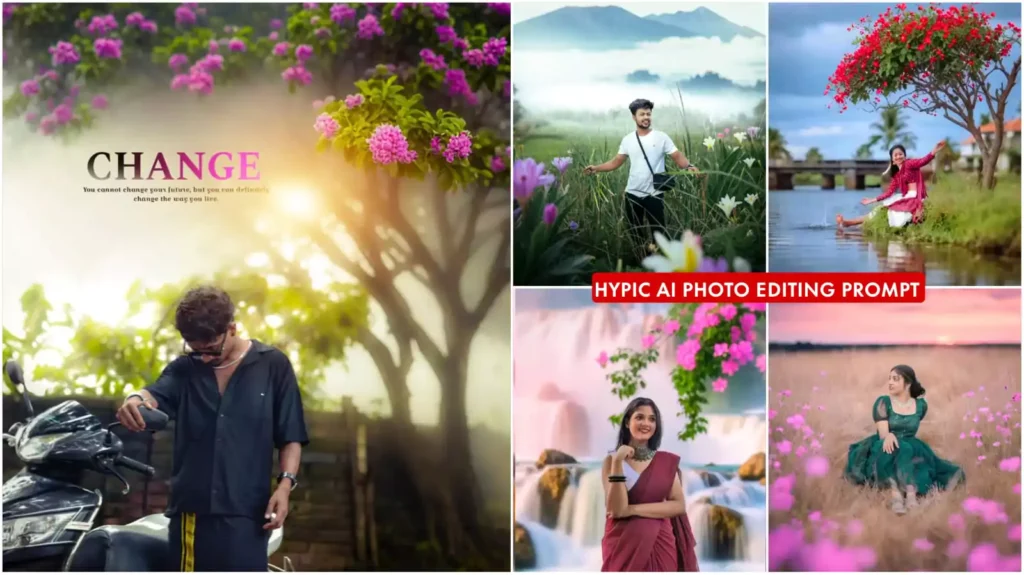
I recently tried the AI Expand feature in the Hypic app because I had a portrait that looked good, but the framing was too tight for a social media post. Instead of cropping the photo or trying to manually extend the background, I wanted to see how well Hypic could handle it automatically.
The result was surprisingly useful. Hypic was able to extend the edges of the image and create additional background content that matched the original photo. However, I also noticed that the result depends a lot on the original picture and the instructions you give the AI.
What Is Hypic AI Expand?
Hypic is a popular photo-editing app with several AI-powered tools. One of its useful features is AI Expand, which can extend an image beyond its original boundaries.
For example, if you have a portrait in a vertical format but need a wider image for a social media post, AI Expand can generate the missing areas around the original photo.
This can be especially helpful when you don’t want to crop the person out of the frame.
The feature can also be useful for changing the composition of photos, creating wider backgrounds, and preparing images for different aspect ratios.
Why AI Expand Is Useful
Normally, when you make a photo wider, you have two choices: crop the image or manually add a background using an editing application.
Cropping is easy, but it can remove important parts of the picture. Manual editing takes more time and requires some knowledge of tools such as Photoshop or other advanced editors.
Hypic’s AI approach makes this process much simpler.
You can start with an existing photo, expand the canvas, and let the AI generate the surrounding area. This is particularly convenient for people who mainly edit photos on their phones./
New Hypic Ai Expend Prompt

cinematic background with subject on a field of flower tree with fog mountain and sunset

Flower garden and mountain

cinematic background boken effect water red flowers on tree

“A dreamy sunset field with tall golden grass and scattered vibrant pink flowers, under a glowing purple-pink sky.”

cinematic background boken effect water flowers waterfall fog, Pink
How to Use Hypic AI Expand
The basic process is quite simple.
Step 1: Open Hypic
First, install and open the Hypic app on your Android or iPhone. Make sure you’re using a recent version because the available AI features can change with app updates.
Step 2: Select Your Photo
Choose a clear image from your gallery.
I recommend using a photo with a reasonably simple background. Images with complicated objects, crowds, or lots of text can sometimes produce less natural results.
Step 3: Find the AI Expand Feature
Look through the AI editing tools and select the AI Expand option if it is available in your version of the app.
The interface may look slightly different depending on your device and app version.
Step 4: Choose the New Composition
Decide how much you want to extend the image. Don’t expand too much on your first attempt.
I found that making smaller changes usually gives the AI less work to do and can result in a more believable background.
Step 5: Review the Result
After the AI generates the expanded area, carefully inspect the image.
Check the edges, face, hair, clothing, buildings, objects, and other important details. If something looks strange, try generating another version rather than immediately saving the first result.
My Experience With Hypic AI Editing
One thing I noticed while testing AI Expand is that simple backgrounds are much easier for AI to recreate.
For example, extending a sky, wall, road, grass area, or blurred background can look quite natural. But when I tried expanding an image containing several people and detailed objects, some areas didn’t match perfectly.
This is one of those situations where AI editing saves time, but you still need to check the final result.
Another useful lesson is not to over-edit the picture. If the original photo already looks good, a small expansion is often enough. Trying to dramatically change the entire composition can make the image look artificial.
Where You Can Use Expanded Photos
There are several practical uses for this feature.
You can expand a portrait for an Instagram post, create a wider image for a Facebook post, prepare a photo for a YouTube thumbnail, or adjust the composition before uploading it to another platform.
It can also be useful when someone sends you a photo that doesn’t have the right dimensions for the design you’re working on.
Instead of immediately cropping it, you can try expanding the background first.
Common Mistakes to Avoid
The biggest mistake is expecting AI to recreate every complicated background perfectly.
If the image contains small text, detailed architecture, multiple faces, or unusual objects, inspect the generated area carefully.
Another mistake is starting with a low-quality image. AI Expand can generate new areas, but a blurry original image can still affect the overall quality.
Also, avoid expanding too much at once. If you need a significantly larger image, try doing it gradually and compare the results.
Finally, remember that AI-generated content should be checked before publishing, especially when the image contains people or important visual details.
Final Thoughts
Hypic AI Expand is a handy feature for anyone who regularly edits photos on a smartphone. It can save time when a picture is cropped too tightly or doesn’t match the required aspect ratio.
From my testing, the best results come from starting with a clear photo, expanding the image gradually, and keeping the surrounding background reasonably simple.
You don’t need complicated editing skills to experiment with it. Just try a few different compositions, compare the results, and choose the version that looks the most natural.
If you’re already using Hypic for photo editing, the AI Expand feature is definitely worth testing for your next social media or creative project.